Category Archives: VoCore

vohttpd: current process

Recently I am busy on vohttpd 🙂 VoCore should have a light weight and powerful httpd(NOTE2), so we can make IoT web interface easier.(save memory and flash will reduce the cost too 🙂 )
I am new to web develop, so the process on http/javascript is very slow 🙂 But I am good at net/c develop, that part is going well.
Currently I have finished the vohttpd main application, now just consider the framework for the web side interface. I want it to be very simple and modularized.

This is my dreamed embedded httpd application:
1. light weight. even able to run on 8~16MB memory device.
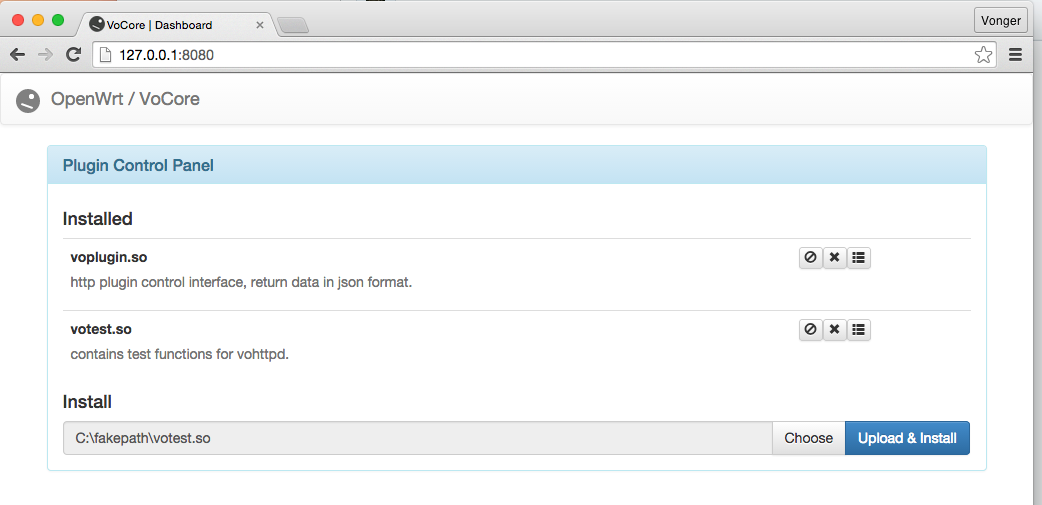
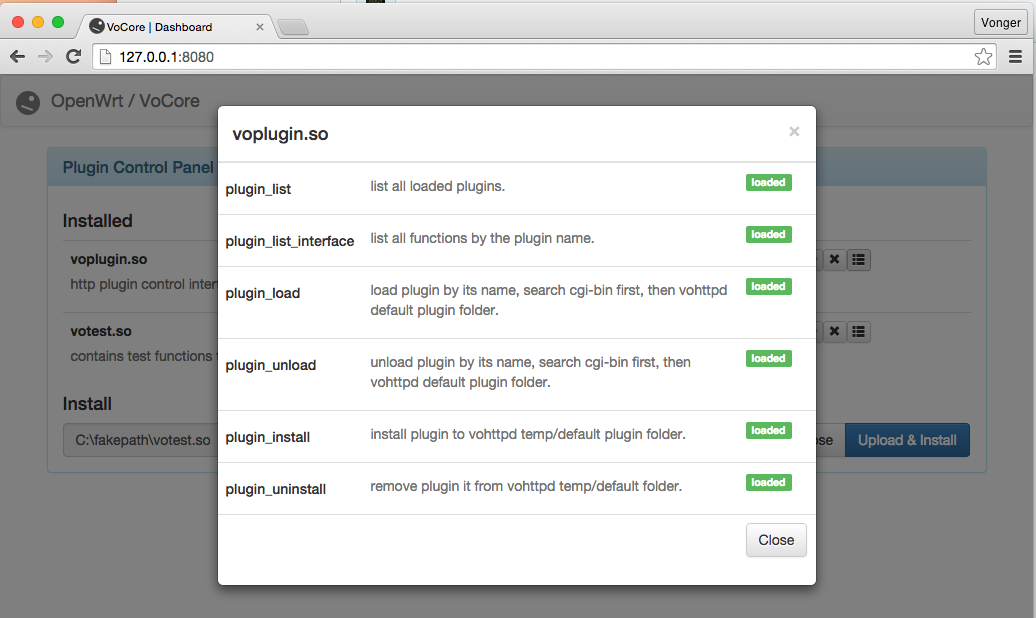
normal memory usage < 60KB(NOTE1), or even < 20KB in low performance situation. 2. flexible. we can drag & drop plugin into browser, then the embedded device will have such function. For example: to enable webcam function, we just need to drop the install package into browser, it will install all necessary compose. and show the webcam video on browser. 3. easy to develop. it should have only a few( < 10) necessary api for the plugin. I hate read documentations; also hate write them. 🙂 A developer who knows some basic C language(mainly is for string) will able to develop plugin. User Interface should be all in web side. Plugins should only provide the function, like webapi. The javascript make the logic for the UI, bootstrap and html for the widgets on the UI. 4. fast speed, stable, etc... I write a simple plugin control interface, based on bootstrap and jquery. source code can be find at http://github.com/vonger/vohttpd. I am still learning this, the interface will be upgrade later. Now it is able to compile and run on linux, macos, windows(mingw). Browser: firefox, chrome, ie. Screen Shot 2014-12-24 at 21.33.51

Screen Shot 2014-12-24 at 21.33.57

NOTE1: this memory usage is the application alloced memory, system memory is not contained. It is about 200KB~300KB in total. That is used to shared libraries, plugins, etc.
NOTE2: I compared and tried many httpd applications, none of them made me happy, in my last blog I explained that.

VoCore: Returned Package 1

Here are some packages returned from China Post, please check if there is your package. Most of them are incorrect address. (After 4~6 months, some people might already move to new place). If your trace id is in the list, please email your new address to support@vocore.io.

RC127346697CN
RC127346958CN
RC127346520CN
RI077512791CN
RI077509758CN
RI077513474CN
RI077511615CN
RI077510549CN
RI077511195CN
RI077512403CN
RI077510875CN
RI077508528CN
RI077512448CN
RI077510645CN
RI077509293CN

VoCore: StarterKit Breakout Board

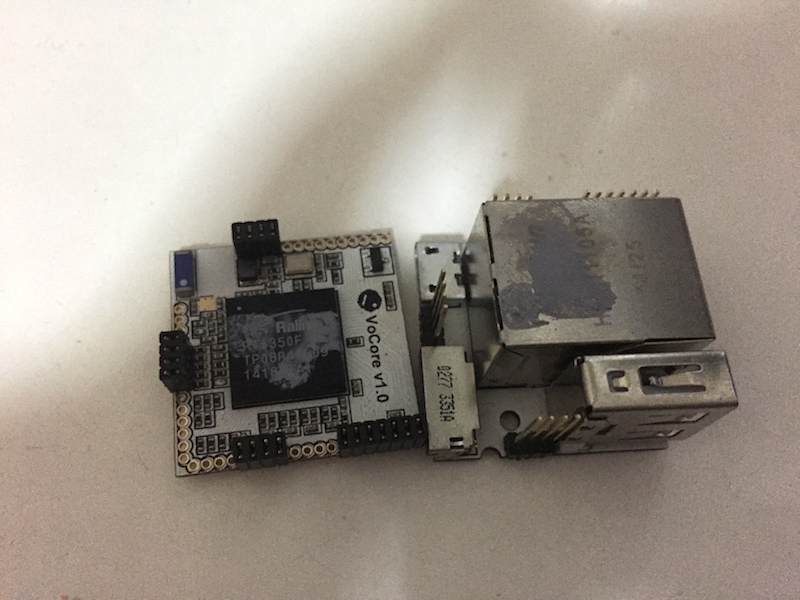
VoCore breakout board will have such features:

1. two ethernet ports.
2. jtag port, 2.54mm pins, with 10k ohm pull up resistors.
3. gpio port, 2.54mm pins, with 4.7k ohm pull up resistors.(some for boot stripe has pull down)
4. reset button.(with 4.7k ohm pull up)
5. spi port, 2.54mm pins.
6. micro USB power in.
7. uart full port, 2.54mm pins.
8. usb 2.0.
9. size about 6cm x 4cm

consider to add to this breakout board:
1. arduino chip and pins export.
2. on board usb2ttl chip.

Former layout:
layout

VoCore: wireless printer & usbip

Plan to use usbip upgrade my cheap printer(Epson ME350) into a wireless printer, also a wireless scanner.
But just find it is very hard to complete that.

There is kmod-usbip-client, kmod-usbip-server in the openwrt truck, but I just can not find usbipd, that is a important compose for transfer data to client computer. As I remember, it is there in old openwrt truck…

If I can not find any exist package, I have to rewrite part of that usbipd, to make it work.
usbipd is based on glibc…but current openwrt is using ulibc, can not compile directly.
Only this middle adapter application missed…I am so eager to try usbip control my printer wirelessly. 🙂

VoCore: MJPG Camera

Prepare:
1. necessary library(openwrt must have video support)
(if you do not know how to compile it, download here packages, or full firmware(no luci):
kmod-video-core_3.14.25-1_ramips_24kec.ipk
kmod-video-uvc_3.14.25-1_ramips_24kec.ipk
kmod-video-videobuf2_3.14.25-1_ramips_24kec.ipk
libjpeg_9a-1_ramips_24kec.ipk
mjpg-streamer_r182-2_ramips_24kec.ipk

copy all of them to vocore:
scp kmod-video-core_3.14.25-1_ramips_24kec.ipk root@192.168.61.1:/tmp/
scp kmod-video-videobuf2_3.14.25-1_ramips_24kec.ipk root@192.168.61.1:/tmp/
scp kmod-video-uvc_3.14.25-1_ramips_24kec.ipk root@192.168.61.1:/tmp/
scp libjpeg_9a-1_ramips_24kec.ipk root@192.168.61.1:/tmp/
scp mjpg-streamer_r182-2_ramips_24kec.ipk root@192.168.61.1:/tmp/

ssh to vocore, install:
opkg install /tmp/kmod-video-core_3.14.25-1_ramips_24kec.ipk
opkg install /tmp/kmod-video-videobuf2_3.14.25-1_ramips_24kec.ipk
opkg install /tmp/kmod-video-uvc_3.14.25-1_ramips_24kec.ipk
opkg install /tmp/libjpeg_9a-1_ramips_24kec.ipk
opkg install /tmp/mjpg-streamer_r182-2_ramips_24kec.ipk

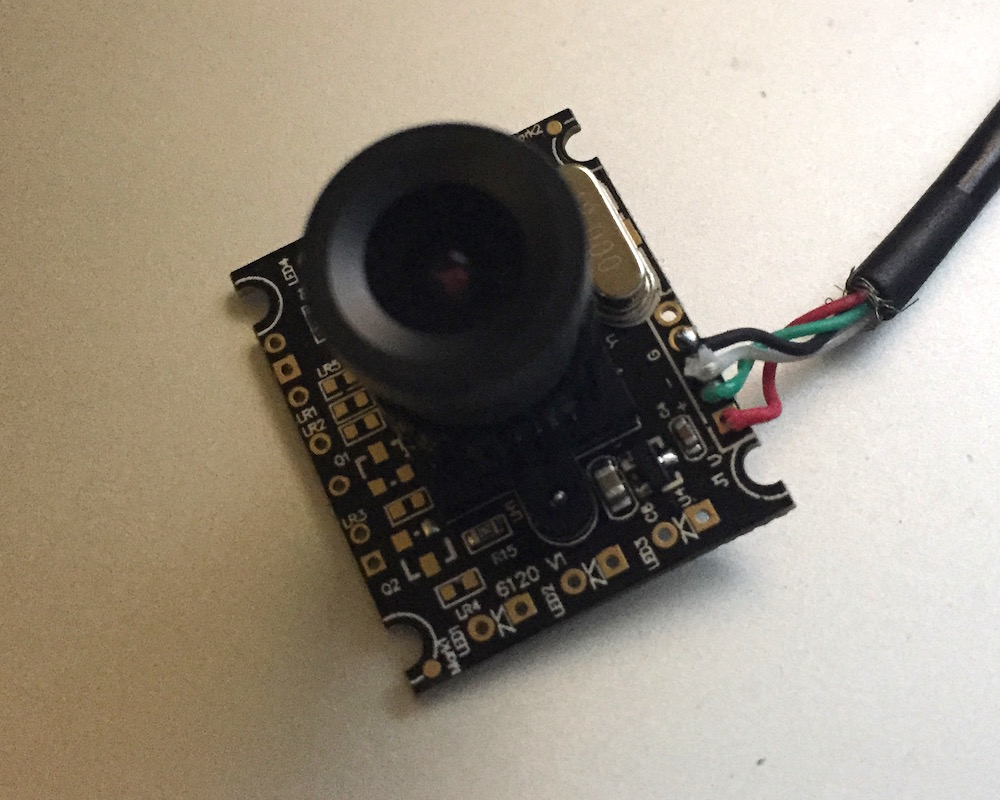
2. one usb mjpg camera. mine get from taobao.com, cost about 12USD.
IMG_0203

3.a vocore, need to connect with USB D+/D- and give the webcam 5V power.
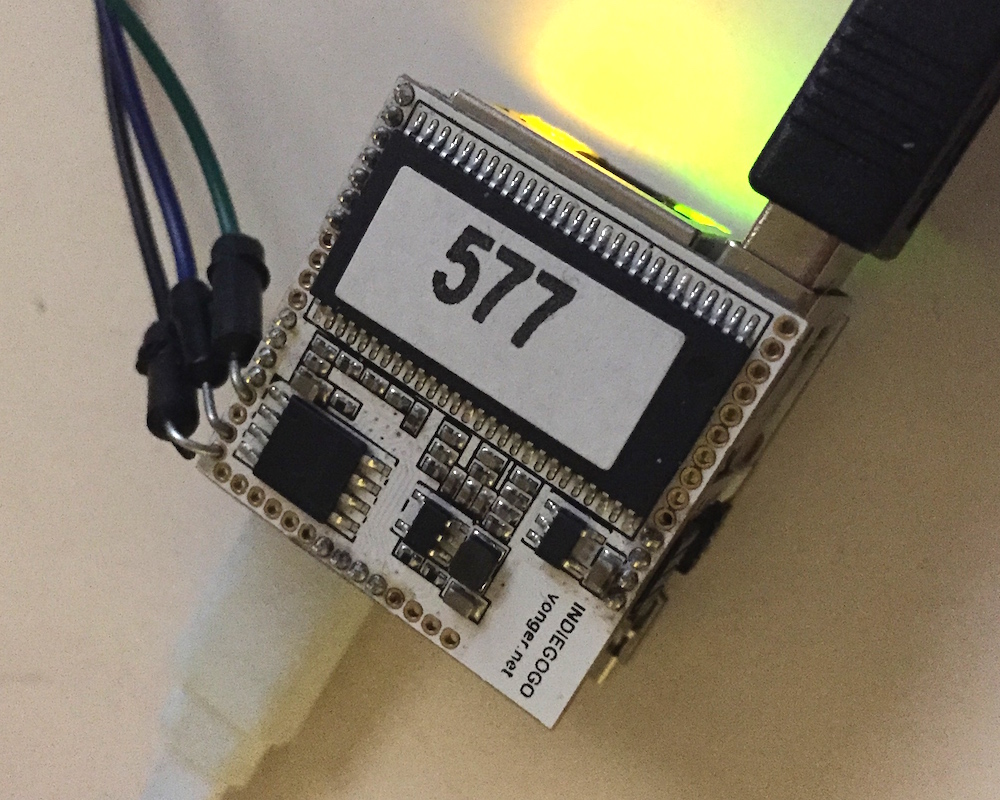
3.b vocore + dock, this is much easier, directly connect to dock usb port.
IMG_0202

Now, run

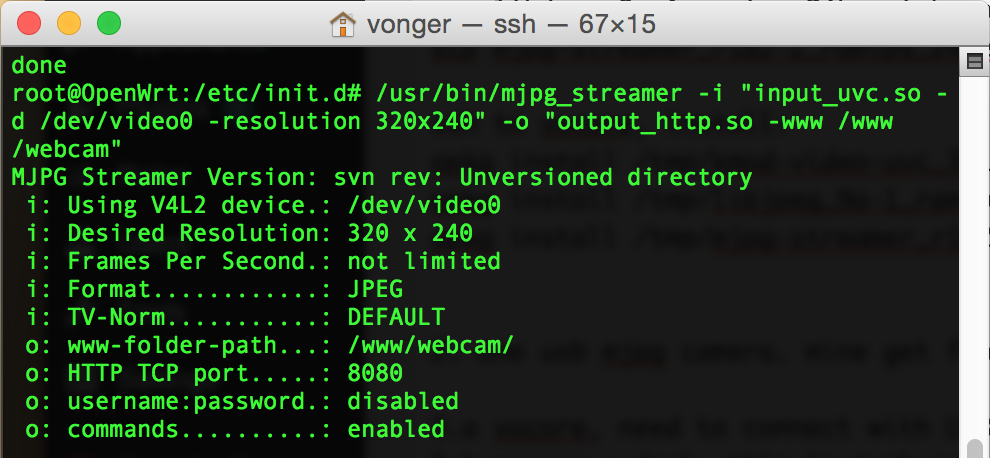
/usr/bin/mjpg_streamer -i "input_uvc.so -d /dev/video0 -resolution 320x240" -o "output_http.so -www /www/webcam"

(Note: “/etc/init.d/mjpg-streamer start” not working, have to call it directly)
Screen Shot 2014-12-06 at 6.01.35 PM

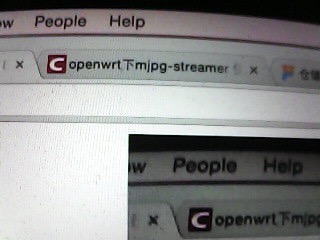
Try with your browser 🙂 Plan to write a plugin for vohttpd, to make this easier.
http://192.168.61.1:8080/?action=stream

Looks like my webcam is a little short sight…
camear

VoCore: SPI & MicroSD 12

Finally it works 🙂 But still not perfect.
Thanks for noltari find the problem. Just change spi speed line in dts, then it works.

Here is the patch and new spi-rt2880.c(rewrite by noltari)
vocore_spi_sd_#1
spi-rt2880

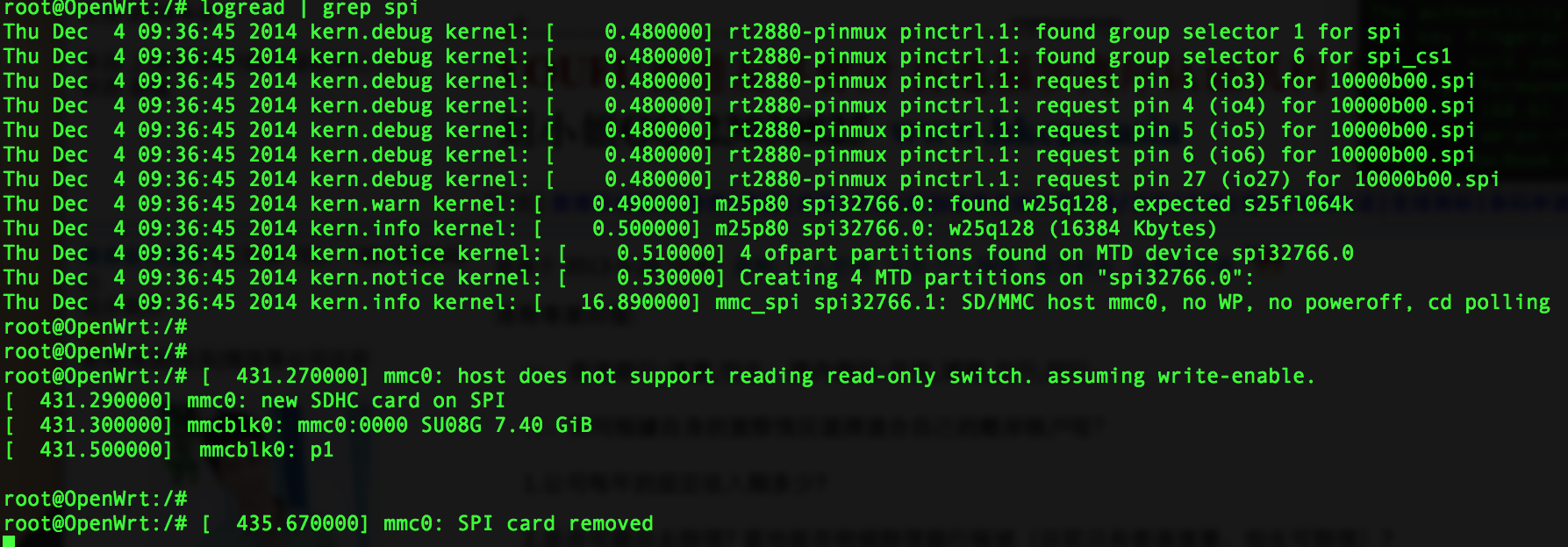
Here is the screen capture.
Screen Shot 2014-12-04 at 5.46.30 PM

PS: here is the patch of VoCoreopenwrt-vocore patch
1. change ap to VoCore to avoid ap name conflict with other openwrt device.
2. change default ip to 192.168.61.1 to avoid ap+sta mode ip conflict.
3. change shadow file, so there is default password “vocore”
4. change dts flash partition to fit 16MB flash.(keep the line if you are using 8MB version vocore)

Here is the link of compiled firmware: vocore.16m.microsd.bin

VoCore: Package FAQ

There are mainly two type of packages:

VoCore
1. VoCore, main board version
a) 4x4p female connectors.
b) 4x7p female connectors.
c) USB convert to TTL, driver PL2302.

VoCore + Dock
2. VoCore + Dock
a) 1x4p female connectors.
b) 3x7p female connectors.
c) USB convert to TTL, driver PL2302.

What are those addition female connectors used to do?
They are used to solder on the pin holes to make them stand longer.
1.27mm female connectors are hard to find in some countries, so I add that to the package, but that is not necessary at all. From current report, the female connectors did not help much, just lead a few people broken down VoCore when they trying to solder the connectors. I am thinking to remove it in further package.
For beginner, a break out board is necessary, so people will not afraid of broken their little VoCore. 🙂 I am on that now.

PS: I thought the buyers of VoCore should have enough skill to solder that, but I am totally wrong. That’s my bad. 🙂

What is that USB2TTL used to do?
That USB2TTL is very important. It helps you repair the bricked VoCore by uboot or connect to VoCore when your wifi or ethernet do not work.
When I write driver for VoCore, I always make stupid mistake, such as system can not reboot or too heavy CPU load, make the wifi can not work normal. For such situation, USB2TTL is the only way to connect to VoCore(maybe JTAG is fine too, but I did not try).

Next version I will consider to add USB2TTL chip to dock, but the space on dock is so limited, that QFN chip + slot parts is not easy to assemble.
This move must be very careful 🙂

How to detach the VoCore and the Dock?
That is not easy, due to there are almost 20 pins tightly connected together and the pin are long, 14mm, easy to bend.
There is no glue between the VoCore main board and the dock, the white one is just silicone grease make the CPU well touch the ethernet port which is used to be a heat sink.

Detach the VoCore + Dock, two keywords are “vertical” and “slow”, the pin into the female connector about 1.4mm, if you do not do it vertical, the pin might bend.

IMG_0198

VoCore: Starter Tutorial Part2

IMG_0196 (1)

About GPIO, I post a blog when I start VoCore.
Please check this link http://vonger.cn/?p=473.

There is some note about how to finish this:

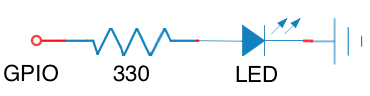
Connection:

Screen Shot 2014-11-21 at 7.03.13 PM

That 330ohm resistor is necessary, without it, the LED will burn.

Command:
Already in this post http://vonger.cn/?p=473.

Advance:

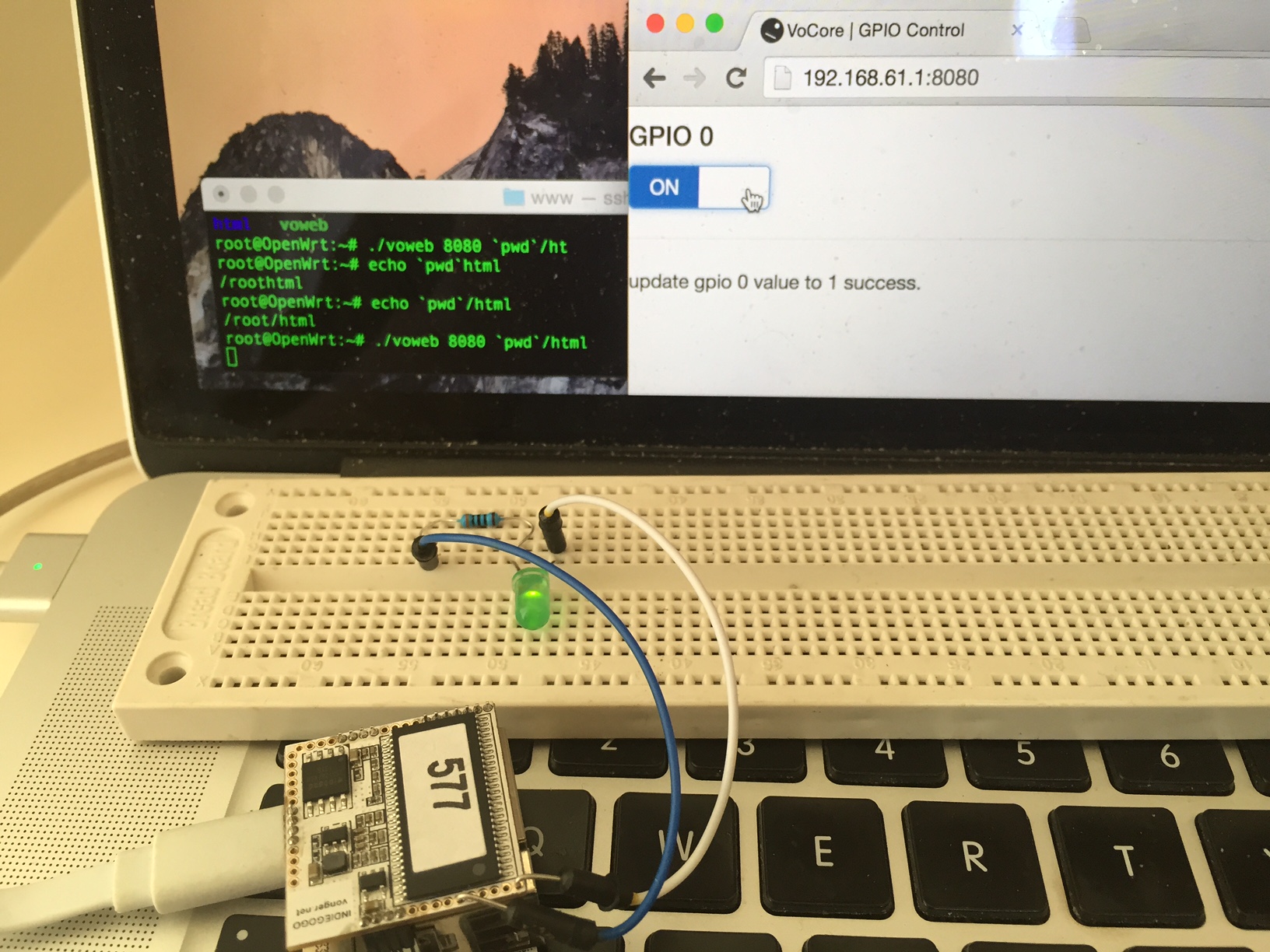
We can write an API for this LED control, so we can simply control it from browser remotely 🙂 phone, computer, pad, anything have broswer.

Here is the code, based on VoWeb, just add one function:

int voweb_func_gpio0ctrl(socket_data *d, string_reference *pa)
{
    char buf[MESSAGE_SIZE] = "Invalid parameter.";
    FILE *fp;

    fp = fopen("/sys/class/gpio/gpio0/direction", "w");
    if(fp == NULL) {
        sprintf(buf, "update gpio 0 direction failed.");
        return send(d->sock, buf, strlen(buf), 0);
    }
    fwrite("out", 1, 4, fp);
    fclose(fp);

    if(memcmp(pa->ref, "on", 2) == 0) {
        fp = fopen("/sys/class/gpio/gpio0/value", "w");
        if(fp != NULL) {
            fwrite("1", 1, 2, fp);
            fclose(fp);

            sprintf(buf, "update gpio 0 value to 1 success.");
        } else {
            sprintf(buf, "update gpio 0 value to 1 failed.");
        }
    }
    if(memcmp(pa->ref, "off", 3) == 0) {
        fp = fopen("/sys/class/gpio/gpio0/value", "w");
        if(fp != NULL) {
            fwrite("0", 1, 2, fp);
            fclose(fp);

            sprintf(buf, "update gpio 0 value to 0 success.");
        } else {
            sprintf(buf, "update gpio 0 value to 0 failed.");
        }
    }

    return send(d->sock, buf, strlen(buf), 0);
}

And register this function:

string_hash_set(funcs, "gpio0ctrl", (uchar *)voweb_func_gpio0ctrl);

Here is compiled one and necessary html: download

Uncompress vocore.voweb.gpio.test.zip to local folder, such as “~/voweb.gpio”, and scp all of the files to root@192.168.61.1:~/

scp -r ~/voweb.gpio/* root@192.168.61.1:~/

Then run command in vocore.

/root/voweb 8080 /root/html

Just open 192.168.61.1:8080, you will find this page, now, just click on the switch, the LED is under your control.

Here is a simple video:

Any questions, just leave a comment under. 🙂
brandonhead, I like your question 😀

VoCore: No LuCI 3

From last week, I am thinking of a super light weight web server.
There are many choices:
LuCI + uhttpd, goahead, mini-httpd, etc…

But none of them is perfect for me:

1. cgi part use too much resource.
Fork new child process to deal cgi, and dealing code with Lua. Calling script to create the html page. If I need update frequently, such as video, the board will die for out of memory or cpu 100%.

2. memory control low efficiency.
They call malloc for every memory request. For small memory device, such malloc is pain. It will generate tons of memory fragment, and the core have to arrange them, costs lots of resource.

3. unnecessary optimisation.
We just has one core, so whatever the optimisation you do, remember the most effect way is to make the app run in one thread.
Such on board web server do not have to deal with many people request same time, so use why use pthread? Looks like the reply time is shorter, but underground it costs two times of CPU time, if the load is heavy, it is twice slower.

4. take too much disk(flash) space.
goahead, after I compile it, the size goes to 850KB, and even not contains its dependency library.

So same reason as I make VoCore, I write something looks better to me.

1. advanced memory control.
Only 12KB or even lower memory request. Self maintain memory, do not create memory fragment.

2. optimisation for one core cpu.
The full application only have just one thread, no switch cost.

3. cgi write in pure C code.
This makes it more effective, no middle layer. Pure server, client mode.

4. super fast.
deal 60~80/sec request on VoCore.

5. minimised dependency
Only basic C library is necessary. Do not need pthread, libdl, etc.

6. small executable file size.
After compile, it is 33KB, and do not need addition library. That’s all.

7. source code in one file.
I like sqlite3 style, so I make all files into one file, easy to compile.

This VoWebServer is very “embed”, of course, it is just a new project, many bugs have to be fixed, at least, we have one more choice. 🙂

Here is the source code, once I feel happy about it, will upload to github.
compile it by one line:

cc -g voweb.c -o voweb

Compiled one for VoCore: voweb

run it like this:(put some htmls to /var/www/html, it will get index.html)

voweb 8080 /var/www/html

Then open 192.168.61.1:8080, you will find the page 🙂
Test cgi function: http://192.168.61.1:8080/cgi-bin/love?VoCore
(cgi-bin folder do not exists)

VoCore: Starter Tutorial Part1

In this tutorial, I will show you the full process about setup a develop environment and compile/run a “hello world” on VoCore, step by step.

1. Prepare Linux
a) Download and install VirtualBox. VirtualBox is a famous open source VM software, I like it. If you are using Linux OS already, just ignore this.

https://www.virtualbox.org/wiki/Downloads

Screen Shot 2014-11-20 at 10.45.00 am

Click on the links, you will get the install package, run it to install VirtualBox into your computer. If you have VoCore you can not be a newbie to such thing.

b) Download Ubuntu. Ubuntu is the first UI Linux I used. I like the font 🙂

http://www.ubuntu.com/download/
Screen Shot 2014-11-20 at 10.47.38 am

After download, you will get the ubuntu install iso file.

c) Setup VirtualBox and install ubuntu into it.
Screen Shot 2014-11-20 at 10.51.24 am (2)

Better to have 30GB free disk space(at least 20GB).
Screen Shot 2014-11-20 at 10.51.38 am (2)

Click “Create”, then double click the new item in VBox.
It will popup a window request you to select the iso.
Now select your downloaded ubuntu iso, then click Start.
Screen Shot 2014-11-20 at 10.51.59 am (2)

Rest is the install Ubuntu, I will not post here, please check ubuntu.com for the install instruction.

d) Install VirtualBox driver to ubuntu.
After ubuntu installed and startup successfully, we have to install VirtualBox driver so we can use the network, etc in VM.

Details is here: https://www.virtualbox.org/manual/UserManual.html

Now we have a Linux system in VM.

2. Prepare OpenWrt.(http://vocore.io/wiki/index/id:15)

a) Install necessary tools:
sudo apt-get install zlib1g-dev libncurses5-dev gawk subversion libssl-dev git

b) Download openwrt
git clone git://git.openwrt.org/openwrt.git

c) Make & Compile
goto openwrt folder(git create that), for example: cd ~/openwrt
make menuconfig
Screen Shot 2014-11-20 at 11.07.52 am (2)
make sure the config is like upper picture.

call make to compile openwrt, or make -jX for faster speed.(X is your CPU core number +1, for my macbook pro, it is -j9)

3. Write your first application.
use vi or any text edit, create main.c.

#include <stdio.h>

int main(void)
{
    return printf("hello world\n");
}

Now there are two ways to compile your main.c
One is to write a makefile, put the file to openwrt package folder, I will show this way in later tutorial.

Another way is super simple 🙂 Just make sure main.c is in current folder.

`find . -name mipsel-openwrt-linux-gcc` -g main.c -o hello

Now you have the compiled application, hello.
Note: you might get this warning, just ignore that.

mipsel-openwrt-linux-gcc: warning: environment variable 'STAGING_DIR' not defined

4. Upload to VoCore

a) Connect to your VoCore.

Here is the tutoral

VoCore: Simple Start Tutorial 1

VoCore: Simple Start Tutorial 2

b) scp the file to VoCore, password vocore.

scp ./hello root@192.168.61.1:/tmp/

c) ssh to VoCore.

ssh root@192.168.61.1

d) Try to run your first app.
Works well 🙂
Screen Shot 2014-11-20 at 11.39.21 am (2)

Next tutorial, I will show how to remote control GPIO.